



Vertical shape

Ambidextrous design

With Break indicator

For left- and right-handed use

Ambidextrous design

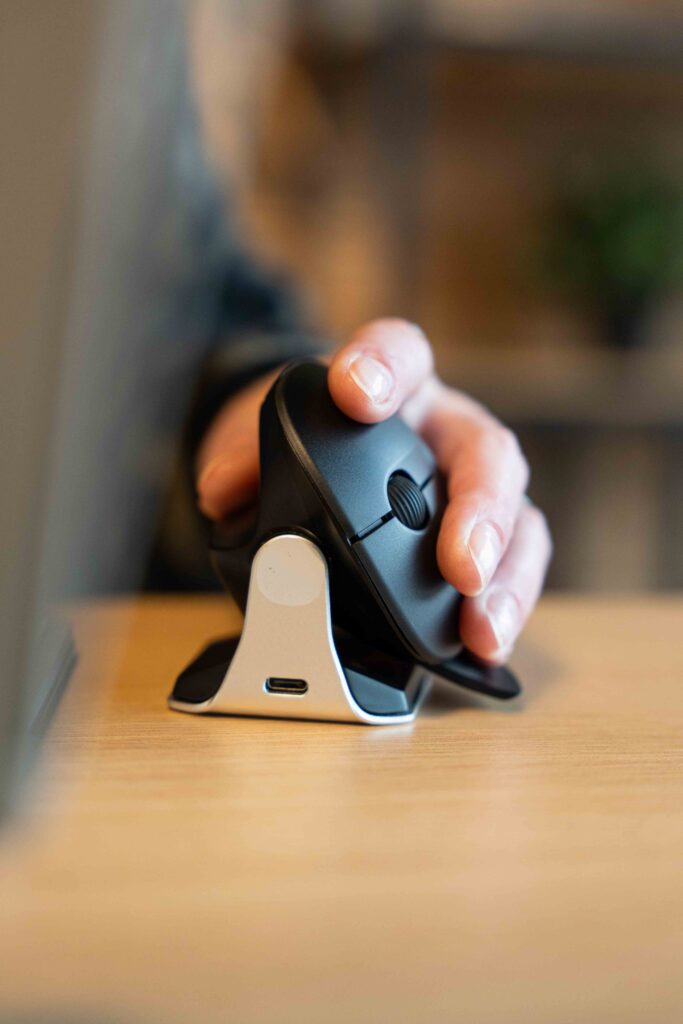
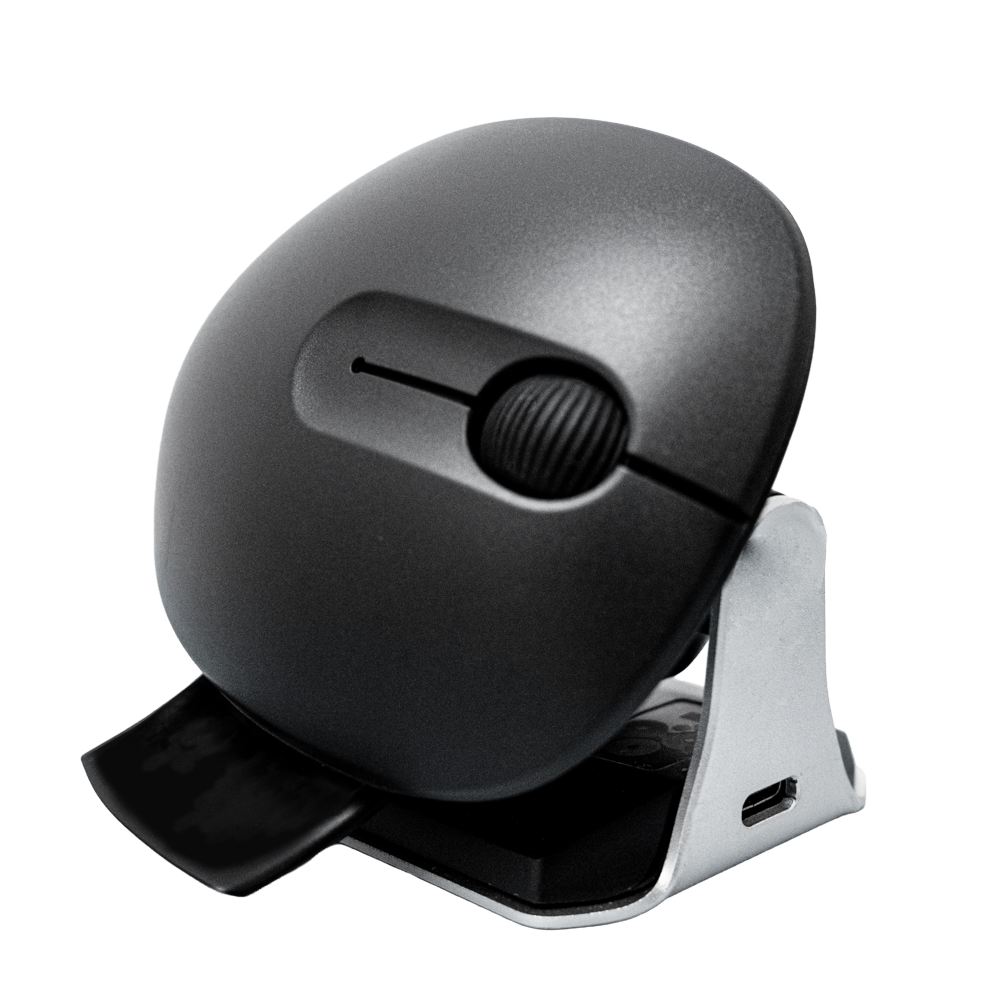
This vertical mouse has a special feature: it is ambidextrous. As the name Waver suggests, it makes you ‘wave’: it features a special wave mechanism. With a single movement, you can operate the mouse with your right hand one moment and then switch to your left. This can be very useful if you’re not the only one using the mouse, but have to share it with others. What’s even more, by regularly switching between right and left, you can ensure that your dominant hand isn’t overloaded. This way, you spread the strain across both hands. The R-Go Waver is specially designed for situations where many different people need to use the same mouse, for example in large families, at schools and universities, in public spaces and institutions, and at various flexible workspaces. Often, you have to make do with whatever resources are available, which doesn’t always mean working in a healthy way. The Waver is an affordable left-right mouse designed to enable healthy computer use shared by multiple users at the same workstation.

Benefits

R-Go Waver Ambidextrous Mouse

  • Vertical ergonomic design
  • Easy to switch between left- and right-handed use
  • With integrated pause LED for individual use
  • Wired and wireless (3-in-1 connectivity) versions
  • Made from 100% recycled plastic and aluminium

Vertical design

Mouse movement from your arm

The vertical design of the R-Go HE mouse ensures that you use the mouse moving your arm rather than your wrist. This relieves strain on the small muscles and tendons in your wrist and hand, helping to prevent nasty complaints such as RSI/CANS. The mouse is deliberately lightweight, so you need less muscle tension to move it.

With integrated break indicator

Helps remind you to take breaks

The R-Go Waver mouse features an LED light controlled by the R-Go Break software. This light changes colour, like a traffic light. When the light turns green, it means you are working healthily. Orange indicates it is time for a short break, and red means you have been working for too long. This provides you with positive feedback on your working habits.

All you need to know

Description

This vertical mouse is ambidextrous, so it is suitable for both left- and right-handed users. Thanks to the patented wave system, the Waver can be switched from a left-handed to a right-handed mouse and vice versa with a single movement. By regularly alternating between your left and right hand, you distribute the strain across both hands and prevent unpleasant complaints such as RSI. This also makes the Waver healthy to use for all users. Healthy working is made possible in a workplace with multiple users by using a single mouse for everyone. For individual use, the Waver mouse helps remind you when it’s time for a short break. The LED indicator is controlled by our Break software and, based on actual mouse usage, shows how healthily you are working. This mouse is available in both a wireless (3-in-1 connection) and a wired version. The mouse’s total battery life is up to 2 months after a full charge (with average use).

Certified

Tested and recommended

“Ergonomic and body-friendly mice, keyboards, monitor arms, document holders and laptop stands from R-Go help you work at a computer naturally and effortlessly. They relieve the user rather than placing additional strain on them. It is particularly important that the aids suit the user, as different people have different preferences. Congratulations on the AGR seal of approval and on products that make working life easier!” Aktion Gesunder Rücken (AGR)

FAQ

Veelgestelde vragen

The light helps you remember when it’s time for a short break. If you already use a mouse with a break indicator and would prefer to turn off the LED light on the keyboard, you can do the following:

For all Qwerty layouts, use the key combination Fn+A.

For the other layouts you can use the key combination Fn+Q.

Category: Split Break

Originally not. However, users who know how to use the command below have managed to get the keyboard working under Linux. Please note that any faults resulting from these commands are not covered by the warranty.

Go to:

sudo nano /etc/modprobe.d/hid_apple.conf

Put this here:

options hid_apple fnmode=2

Then add:

sudo update-initramfs -u

– Go via the Windows menu to ‘Settings’ and click on ‘Devices’.

– See if the row displayed says ‘Bluetooth’

– If so, check whether Bluetooth is really ‘on’

Note: Now do not use a Bluetooth dongle, otherwise no connection will be possible!

It is possible to connect this keyboard to 3 different devices, such as your PC, laptop or mobile phone. To connect it, you can choose channel 1,2 or 3. Each channel can be connected to one device.

To connect the keyboard to one device, for example your laptop, press and hold the Fn- key together with the key of your chosen channel for at least 3 seconds. It will search for a device to connect with. You will see the Bluetooth light on the keyboard go blinking.

Go to “Bluetooth & other devices” menu on your computer. To find this you can typ “Bluetooth” in the left corner of your Windows bar.

Check if Bluetooth is on. If not, turn on Bluetooth or check if your PC has got Bluetooth.

Click on “Add device” and then “Bluetooth”.

Select your Break keyboard. The keyboard will now connect to your chosen device.

Download the free Break LED controller and personalise your breaks.

Category: Split Break

Turn the switch to ‘on’ or, depending on the version, to green.

Category: Split Break

This means you have the latest version of the wired Split Break. We have made a few changes:

– No more loose cables
– Extra keys, so-called hotkeys
– Improved keystroke (better tactile feedback)
– Both parts are connected with a fixed cable
– Has 1 USB-C port to connect a separate numeric if necessary

Check whether a different layout is selected in Windows than your keyboard layout. You can check this by doing the following:

  • Click the Windows button and click “Settings”
  • Click “Time and language”
  • In the menu on the left, click “Language”
  • Under “preferred languages” select the language you are using
  • Click “options”. Under “keyboards” check if the layout matches the layout of your keyboard or add this layout if necessary.

Yes, that is correct. Our wireless products work via Bluetooth. You only need to pair your keyboard and your computer once.

The keyboards are available in QWERTZ (DE), QWERTY (US), QWERTY (UK), QWERTY (Nordic), QWERTY (ES), AZERTY (FR) and AZERTY (BE).