

R-Go HE Basic Vertical mouse

Ergonomics in your hand

Vertical design

Comfortable grip

Bluetooth connection

For a natural and relaxed posture

Vertical design

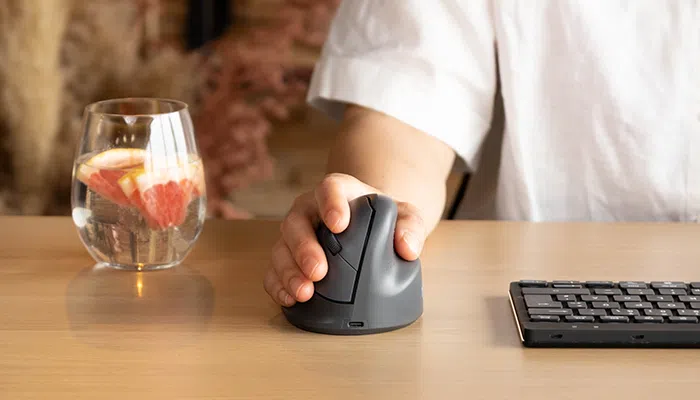
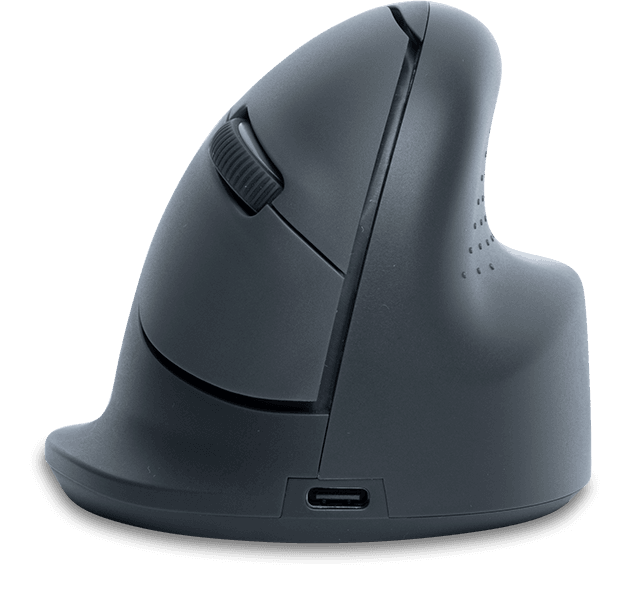
The R-Go HE Basic mouse has an ergonomic vertical shape, which ensures that your arm and hand have a natural, relaxed posture. This natural “thumb up” posture stimulates larger mouse movements, which are healthier than small movements from the wrist. This way you relieve small muscles and tendons in the wrist and hand and can prevent annoying pain symptoms such as RSI. Make sure you do not set the cursor speed of the mouse too sensitive, otherwise you will probably still make small cramped movements. This mouse is purposely designed to be lightweight, so you need less muscle tension to move it.

Benefits

R-Go HE Basic Vertical Mouse

  • Vertical design
  • Comfortable grip
  • Supports all fingers
  • Bluetooth connection

Comfortable grip

Supports all fingers

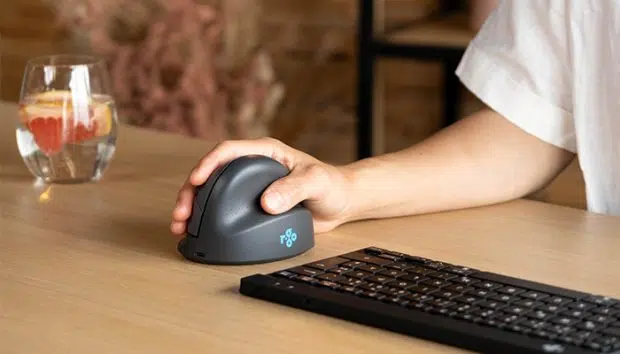
This vertical mouse has a round design and fits perfectly in your hand. Your hand is optimally supported and the grip feels natural and relaxed. The HE Basic mouse has special support surfaces for your thumb and little finger. This prevents the fingers from sliding down during mouse usage and you need even less muscle tension. Mousing has never been so comfortable!

Optimal wireless working

With Bluetooth connection

Never bother with tight cables again! This wireless HE Basic mouse makes mouse usage even easier. The mouse easily connects to your device via Bluetooth and has a rechargeable Li-Ion battery.

All you need to know

Description

The vertical R-Go HE Basic mouse has a curved shape that follows the natural position of your hand. This ensures that your hand has a relaxed position while using the mouse. The vertical design is intended to stimulate the mouse movement advised by ergonomists from your forearm. This prevents physical complaints such as RSI. The mouse features a special support area for the thumb and little finger, so that all fingers are supported. This wireless mouse can be easily connected via Bluetooth. The ergonomic R-Go HE Basic mouse is initially only available for right-handed usage in size M.

Certified

Tested and recommended

”Ergonomic and body-friendly mice, keyboards, monitor arms, document holders and laptop stands from R-Go aid natural and effortless computer work. They relieve the user instead of putting extra strain on them. It is especially important that the aids fit the user, as different people have different preferences. Congratulations on the AGR seal of approval and on products that make working life easier!”
Aktion Gesunder Rücken (AGR)

FAQ

Veelgestelde vragen

The light helps you remember when it’s time for a short break. If you already use a mouse with a break indicator and would prefer to turn off the LED light on the keyboard, you can do the following:

For all Qwerty layouts, use the key combination Fn+A.

For the other layouts you can use the key combination Fn+Q.

– Go via the Windows menu to ‘Settings’ and click on ‘Devices’.

– See if the row displayed says ‘Bluetooth’

– If so, check whether Bluetooth is really ‘on’

Note: Now do not use a Bluetooth dongle, otherwise no connection will be possible!

It is possible to connect this keyboard to 3 different devices, such as your PC, laptop or mobile phone. To connect it, you can choose channel 1,2 or 3. Each channel can be connected to one device.

To connect the keyboard to one device, for example your laptop, press and hold the Fn- key together with the key of your chosen channel for at least 3 seconds. It will search for a device to connect with. You will see the Bluetooth light on the keyboard go blinking.

Go to “Bluetooth & other devices” menu on your computer. To find this you can typ “Bluetooth” in the left corner of your Windows bar.

Check if Bluetooth is on. If not, turn on Bluetooth or check if your PC has got Bluetooth.

Click on “Add device” and then “Bluetooth”.

Select your Break keyboard. The keyboard will now connect to your chosen device.

Download the free Break LED controller and personalise your breaks.

Category: Split Break

Turn the switch to ‘on’ or, depending on the version, to green.

Category: Split Break

This means you have the latest version of the wired Split Break. We have made a few changes:

– No more loose cables
– Extra keys, so-called hotkeys
– Improved keystroke (better tactile feedback)
– Both parts are connected with a fixed cable
– Has 1 USB-C port to connect a separate numeric if necessary

Check whether a different layout is selected in Windows than your keyboard layout. You can check this by doing the following:

  • Click the Windows button and click “Settings”
  • Click “Time and language”
  • In the menu on the left, click “Language”
  • Under “preferred languages” select the language you are using
  • Click “options”. Under “keyboards” check if the layout matches the layout of your keyboard or add this layout if necessary.

Yes, that is correct. Our wireless products work via Bluetooth. You only need to pair your keyboard and your computer once.

The keyboards are available in QWERTZ (DE), QWERTY (US), QWERTY (UK), QWERTY (Nordic), QWERTY (ES), AZERTY (FR) and AZERTY (BE).