
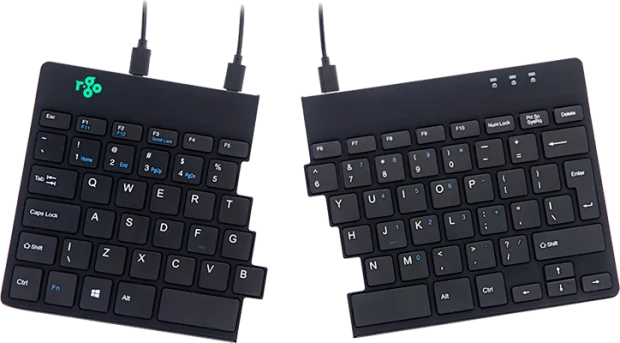

R-Go Split Break Version 2

With break indicator

With break indicator

2 parts

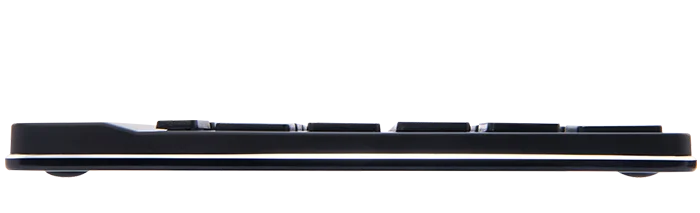
Ultra-thin design

With integrated break indicator

Helps you remember to take breaks

Inside the R-Go Split Break keyboard is an LED light controlled by the R-Go Break Software. This light changes colour, like a traffic light. When the light turns green, it means you are working healthily. Orange indicates it is time for a short break and red indicates you have missed a break. This gives you positive feedback on your break behaviour.

Benefits

R-Go Split Break keyboard

  • 2 part for maximum freedom
  • With break indicator
  • Ultra thin for better blood circulation
  • Light keystroke for minimal muscle tension
  • Easy to carry

2 parts for maximum freedom

Ergonomic split typing

The R-Go Split keyboard consists of 2 separate parts that you can use in any desired position. So you can always type with straight wrists and prevent oppressing tendons and blood vessels. This ergonomic split keyboard can be turned into a compact keyboard with 1 move using the built-in magnet.

Ultra-thin design

Thin keyboard with light keystroke

The Split keyboard is ultra-thin, so you don’t strain and oppress the blood vessels and tendons in your wrists while typing. The special scissor mechanism in the keys ensures a light keystroke, so less strenght is needed to press the keys. As a result, the fingers are more relaxed while typing.

All you need to know

Description

The R-Go Split Break keyboard is an ergonomic split keyboard with integrated break software. This keyboard stimulates you to take regular breaks. This keeps your body’s blood flowing, prevents strain and keeps you fit during your working day. The keyboard consists of two separate parts, which you can place in any set-up you desire. This splitting prevents flexing of the wrists while typing. Typing with straight wrists reduces muscle tension and prevents oppressing of tendons and blood vessels. The built-in magnet allows you to turn the two separate parts of the keyboard into a compact keyboard with just one movement. The compact size ensures that the mouse is always within reach. The light keystroke means minimal muscle tension is present while typing. The keyboard is flat, keeping your hands and wrists flat and relaxed while typing. LED colour signals in the keyboard indicate how healthy you are working and when it is time for a break. As you type, the light changes colour, like a traffic light. Green means that you are working healthily, orange means that it is time for a break, red that you have been working too long. Through these subtle colour signals, you receive feedback on your break behaviour in a simple and positive way. This product works together with the R-Go Break Software that won the Benelux Office Product Award 2021.

Certified

Tested and recommended

“Ergonomic and body-friendly mice, keyboards, monitor arms, document holders and laptop stands from R-Go provide assistance for natural and effortless computer work. They relieve the user rather than putting extra strain on them. It is especially important that the aids fit the user, as different people have different preferences. Congratulations on the AGR seal of approval and on products that make working life easier!”
Aktion Gesunder Rücken (AGR)

FAQ

Veelgestelde vragen

Category: Twister

Yes. A cable is included, which you easily plug into your mouse and connect to your computer. The Twister can be used alternately with or without a cable without any problems. For wireless use, you only have to connect Bluetooth once: you don’t have to do this every time you use the mouse with a cable.

Categories: HE Break Twister

Download the free Break LED controller here and personalize your breaks.

Categories: HE Basic HE Break Twister

The DPI button is located on the bottom of the mouse and is labeled ‘DPI’. 1 click changes the DPI 1 time. The DPI can be adjusted from 500-1750. Tip: A lower cursor speed encourages mouse movement from the arm and prevents stressful repetitive movements from the wrist.

– Go via the Windows menu to ‘Settings’ and click on ‘Devices’.

– See if the row displayed says ‘Bluetooth’

– If so, check whether Bluetooth is really ‘on’

Note: Now do not use a Bluetooth dongle, otherwise no connection will be possible!

Categories: HE Basic HE Break Twister

– From the Windows menu, go to ‘Settings’ and click on ‘Devices’.
– Switch Bluetooth to ‘on’.
– Ensure that your new device is sufficiently charged.
– Press and hold the sync button on the bottom of the device until the blue light blinks.
– Select the mouse from the displayed row on the computer screen to connect it to the computer.

Category: Twister

Yes, that is correct. The Twister can only be used in as vertical mouse unfolded position.

Categories: HE Basic HE Break Twister

This is not due to the mouse, but to the computer. There are often 2 causes for this:

-Multiple Bluetooth devices are connected to the computer. As a result, the computer can occasionally process the Bluetooth information from the mouse with a delay. The mouse cursor then seems to stutterer. This usually resolves itself within a minute and the mouse will work normally again.

– The computer has many programmes to load at the same time. As a result, the mouse’s Bluetooth information is processed with lower priority and thus delayed. Usually this resolves itself within a minute and the mouse will work normally again.

Category: Twister


The Twister mouse is compatible with Windows/Mac OS/Linux.