


Ambidextrous design

Foldable

With break indicator

For left- and right-handed use

Ambidextrous mouse

This vertical mouse has a special feature: it is ambidextrous. As the name Twister suggests, this mouse has a “twist”, it contains a special switch & fold mechanism. With 1 easy twist, you can operate the mouse with the right hand one moment and then switch to the left. By switching between your left and right hand, you distribute the load over two hands and prevent overloading one hand. Are you left-handed and do you share your workspace with a right-handed colleague or roommate? Then you no longer need an extra mouse with this Twister!

Benefits

R-Go Twister Ambidextrous mouse

  • Vertical ergonomic design
  • Easy switch between left and right hand
  • Foldable: ideal to take it with you
  • With pause indicator LED
  • Can be personalized
  • Can be used both wireless (with Bluetooth connection) and wired
  • Made of 100% recycled plastic and aluminum

Foldable

Easy to carry

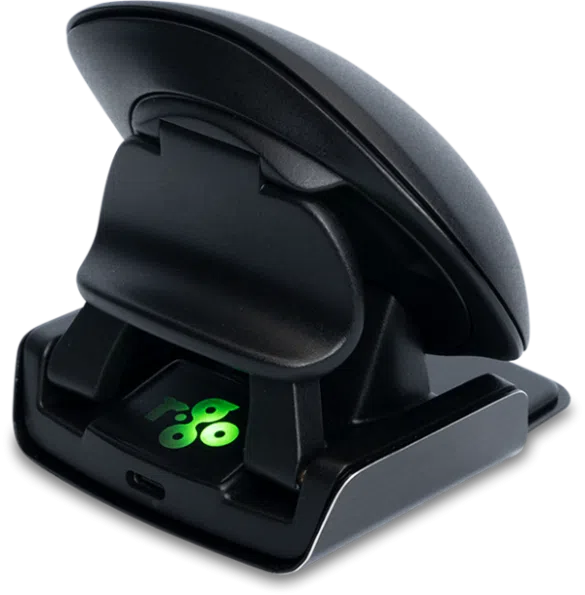
Thanks to its multifunctional patented switch & fold system, the Twister is also foldable. In its flat shape, you can easily take this vertical mouse anywhere and keep working ergonomically.

Helps you remember to take a break

With break indicator LED

The Twister, like our Break products, has a break indicator LED. The integrated break software controls this light based on actual mouse use. Different colours indicate if you are working healthily. Green light means you are working healthily, orange means you need a short break. If the LED turns red then you have been working too long. By regularly taking short breaks, you prevent pain symptoms such as RSI and stay fit and focused during your working day.

All you need to know

Description

This vertical mouse is ambidextrous, so it is suitable for both left- and right-handed people. Thanks to the patented switch & fold system, the Twister can be changed from a left-handed to a right-handed mouse and vice versa with one move. By regularly alternating between your left and right hand, you distribute the load on both hands and prevent annoying complaints such as RSI. In addition, the mouse is foldable, so it is easy to take with you. So you can work ergonomically anywhere. The Twister mouse also helps you remember when it is time for a short break. The LED indicator is controlled by our Break software and indicates just how healthy you are working, based on actual mouse use. This mouse can be used either Bluetooth or wired. The total battery time of the mouse after fully charging is up to 2 months (with average use).

Certified

Approved by experts

We strive for ergonomic solutions that suit everyone, regardless of your height, posture and left- or right-handedness. Our new products are assessed by external ergonomists and a test panel of users. Since June 2022, our ergonomic mice, Break keyboards, Riser laptop stands, monitor arms, document holders and Treepod laptop and tablet stand are also AGR certified. In addition, we won the Benelux Office Award for the Break software and our Viva laptop bag.

FAQ

Veelgestelde vragen

The light helps you remember when it’s time for a short break. If you already use a mouse with a break indicator and would prefer to turn off the LED light on the keyboard, you can do the following:

For all Qwerty layouts, use the key combination Fn+A.

For the other layouts you can use the key combination Fn+Q.

– Go via the Windows menu to ‘Settings’ and click on ‘Devices’.

– See if the row displayed says ‘Bluetooth’

– If so, check whether Bluetooth is really ‘on’

Note: Now do not use a Bluetooth dongle, otherwise no connection will be possible!

It is possible to connect this keyboard to 3 different devices, such as your PC, laptop or mobile phone. To connect it, you can choose channel 1,2 or 3. Each channel can be connected to one device.

To connect the keyboard to one device, for example your laptop, press and hold the Fn- key together with the key of your chosen channel for at least 3 seconds. It will search for a device to connect with. You will see the Bluetooth light on the keyboard go blinking.

Go to “Bluetooth & other devices” menu on your computer. To find this you can typ “Bluetooth” in the left corner of your Windows bar.

Check if Bluetooth is on. If not, turn on Bluetooth or check if your PC has got Bluetooth.

Click on “Add device” and then “Bluetooth”.

Select your Break keyboard. The keyboard will now connect to your chosen device.

Download the free Break LED controller and personalise your breaks.

Category: Numpad Break

If you can’t find your Break numpad, please check if the battery is full (connect the charging cable with USB-C). When the battery is low the LED light on the keyboard will turn red to indicate that the numpad is charging. When charged for minimal 5 minutes, you can try to connect again.

Yes, that is correct. Our wireless products work via Bluetooth. You only need to pair your keyboard and your computer once.